The Center for Assistive Technology and Environmental Access (CATEA) is a multidisciplinary engineering and design research center affiliated with the Georgia Tech College of Design. The consortium’s flagship program focuses on finding barriers that individuals with learning challenges may face. In this piece, we’ll outline the work they do. Accessibility requires a lot of research and resources. The importance of supporting university work like that done at CATEA is critical.
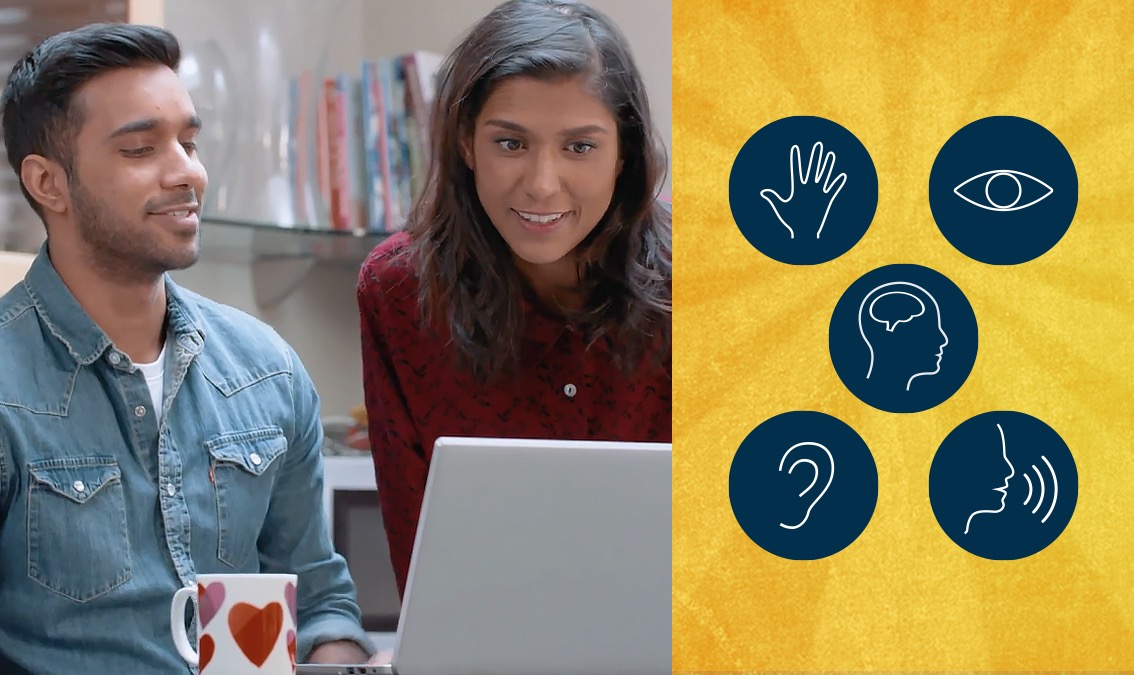
CATEA is a multidisciplinary engineering and design research center
CATEA, The Center for Assistive Technology’s flagship research, currently focuses on helping labs find barriers for people with and without learning challenges. It’s dedicated to enhancing the health, activity, and participation of people with functional limitations through the application of assistive and universally designed technologies in real-world environments, products, and devices.
Digital aids (assistive technologies) are hardware and software that can be used to help students with sensory or motor impairments, or those with specific characteristics, obtain and process information, or even communicate.
These assistive technologies help to compensate for impaired function (eg: sight, hearing, fine motor skills) and challenges related to anxiety and learning. They allow their users to participate in teaching; this is why their use, including during examinations, may be subject to legal provisions.
Specific technologies to promote learning
In partnership with the Center for Applied Special Technology and the Georgia Tech College of Design, CATEA has been developing customized curricula to teach engineering students how to make their designs universally accessible.
The Assistive Technology Research Institute at Georgia Tech researches assistive technologies in collaboration with industry, other research organizations, government agencies, academia (K-12, college, and university), and non-profit organizations.
They partner with many types of agencies including local independent living centers; state vocational rehabilitation agencies; public schools, and private companies. It assists public agencies serving persons who are blind or have low vision such as low vision support services within a division of blind services agency. Lastly, it helps state departments on mental retardation/developmental disabilities services.
Universality in design includes consideration of a range of users such as those with or without disabilities, ages, genders etc. It is not just about making products accessible, however, because they need to be made usable by everyone at the same time.
Assistive technologies are hardware and software that can be utilized to help individuals with sensory or motor impairments, or those with specific characteristics, process information. These assistive technologies work by compensating for the function that is impaired (eg sight, hearing) and provide assistance related to anxiety and learning. They allow their users to participate in educating; this is why their use during examinations may be subject to legal provisions.
Greater participation: Universal Design promotes greater independence and helps people with disabilities gain greater employment opportunities. It increases access to public buildings and spaces resulting in an increase in community integration.
AEI (Accessible Education and Information)
Lab Director: Robert Todd
The Accessible Education and Information Lab provides accessible information on education and technology to a wide audience.
These devices created are as simple as:
- Paper with printed lines can also help people without steady hands.
- pencil grips for writing.
- Touch screens and specialized keyboards to assist those that can’t use traditional input devices for computers.
Switch to the top-rated therapy platform.
What’s Happening in the AEI Lab
The lab has worked with hundreds of individuals that used alternative keyboards since 2002. Recently they had participants in a study use the eKeys keyboard to help them navigate and communicate through a computer. The results were interesting; almost half of the participants reported less stress, fewer hand pain complaints and an overall reduction in frustration levels when using the eKeys Alternative Keyboard.
Over 70% of the respondents found the ability to customize their keyboard layout to be the most important and helpful feature of the device, while over 80% thought having multiple input modalities helped increase both typing speed and accuracy. One participant said: “This was easier for me because you can just put what you need where you need it.”
Accessible Workplace Lab
Lab Directors: Karen Milchus and Jon Sanford
The Accessible Workplace Lab develops new workplace technologies that maximize the independence and participation of people with disabilities in the workplace and provide educational products and resources to support those trying to improve workplace accessibility.
The Center for Assistive Technology Research & Training (CART)
CART was established January 2007, and initiated by Georgia Tech College Of Design’s Assistive Technology Lab (ATL), CATEA was formed around this partnership.
CART is a telerehabilitation technology research center. Their services are designed to help individuals with disabilities receive care for their impairments, in the areas of physical rehabilitation and disability management through distance education.
They offer a wide range of services including remote assistive home exercise therapy (R-AHT), long-distance consultation and education in clinical, disability management and assistive technology for healthcare providers.
Disability & Public Policy Studies (DPSS)
Lab Director: Robert Volk
The Disability and Public Policy Studies Lab (DPSS) conducts interdisciplinary research to understand the intersection of disability and public policy issues. Research in DPSS focuses on improving the quality of life for people with disabilities through improvements in economic opportunities, health care, education, social integration, community access, independent living skills, employment opportunities, assistive technology and other supports.
The goal is to advance policies that promote greater independence within the context of individuals’ lives. Specific areas of current interest include individuals’ use of Social Security Vocational Rehabilitation Services; state developmental disability systems; effective approaches to serving disabled adults who have been previously institutionalized; mobility issues affecting older persons; long-term support service needs of individuals with disabilities; and economic impact of the ADA.
The DPSS Lab’s research studies are conducted using a variety of methodologies including analyses of secondary data, surveys, interviews and focus groups. The work is aimed at providing models that can be adopted by state policymakers to improve service delivery systems for people who have disabilities.
Need to talk?
Match with a licensed therapist and start feeling better today.
SciTrain, a collaboration between the CPSIS/AEI and Quad-Cities Rides
Development of ScitrainU started through CPSIS/AEI and Quad-Cities Rides, an organization in the Quad Cities region that connects individuals with disabilities to community transportation resources. They brought together people with disabilities, transit authorities, graphic designers, developers and community partners to build our app.
ScitrainU is a mobile app that helps people with disabilities learn how to use public transit. ScitrainU is a suite of interactive tutorials, with over 1,000 practice questions and answers for learners with visual impairments who are learning to navigate buses and trains without assistance in eleven different metropolitan areas: Atlanta, Chicago, Houston, Los Angeles, Miami, New York
AssistiveTech.net
AssistiveTech.net is an online repository of information and research about assistive technology devices developed by CPSIS. This website offers a literature review, case studies and other resources to help practitioners understand how assistive technologies can provide solutions to the challenges they encounter in their work with people with disabilities.
Lab Director: David Hulchanski
Assistive Technology & Inclusive Design Lab is focused on helping businesses understand the importance of offering accessible user interfaces for customers and employees with disabilities such as grasp or vision impairments. The lab also works on developing new computer input methods that make it easier for individuals who have limited motor skills or low levels of literacy to access computers allowing them more independence in day-to-day activities. Training is provided both in-person as well as online.
CPSIS offers several types of training courses including computer basics, navigating the Web and more advanced assistive technology courses. The lab also provides professional development sessions for organizations interested in developing inclusive user interfaces with universal design principles.
Catea consumer network
This is a network of older adults and people with disabilities that test prototypes, products, and services to help improve them through focus groups, testing, and surveys.
Bus stop universal design
The Bus Stop Universal Design is a project by CATEA that was established with the goal of creating a more accessible bus stop for people with disabilities. The current prototype will be tested in Athens, GA to see if it improves the accessibility of local bus stops, especially for individuals who are visually impaired. The current prototype is equipped with sound-emitting devices as well as a tactile map of the bus stop and its amenities. This device allows people to independently navigate through the local bus stops without relying on sighted assistance.